Understanding Image Resolution and DPI

Sarah Chen
Frontend Developer
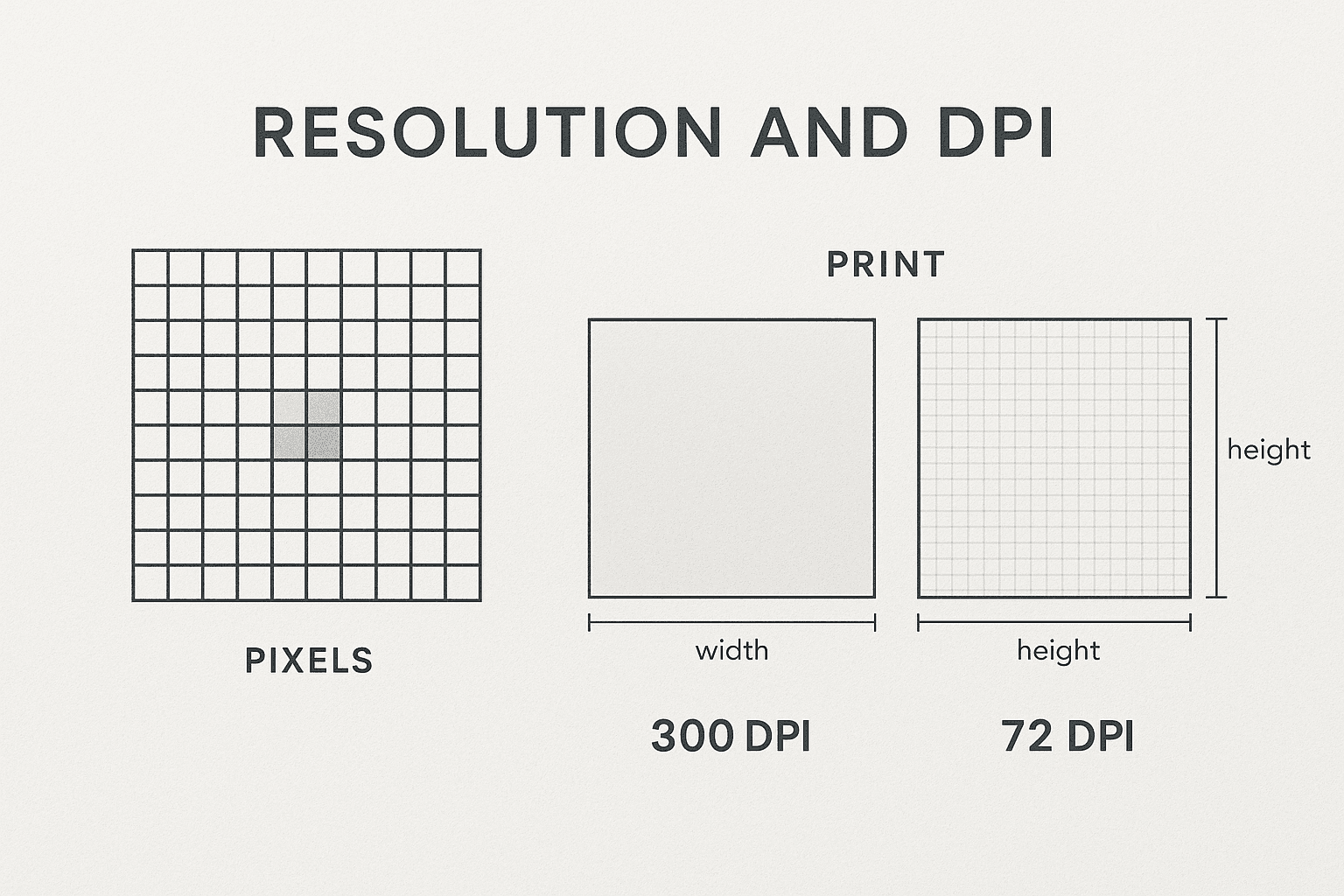
Resolution, DPI, PPI—these terms are often used interchangeably, but they mean different things. Understanding the difference is crucial whether you're preparing images for web, print, or both. This guide will demystify these concepts once and for all.
The Basics: Pixels, DPI, and PPI
Pixels: The Building Blocks
A pixel is the smallest unit of a digital image. When we say an image is 1920x1080, we mean it's 1920 pixels wide and 1080 pixels tall.
Total pixels: 1920 × 1080 = 2,073,600 pixels (about 2 megapixels)
DPI: Dots Per Inch
DPI refers to the number of ink dots a printer can place in one inch. It's a printing term.
- Standard print: 300 DPI
- High-quality print: 600+ DPI
- Newspaper: 150-200 DPI
PPI: Pixels Per Inch
PPI refers to the number of pixels displayed per inch on a screen. It's a display term.
- Standard monitor: 72-96 PPI
- Retina display: 220-300 PPI
- 4K monitor: 150-200 PPI
For Web: PPI Doesn't Matter
Here's a secret that confuses many people: PPI is irrelevant for web images.
When you save an image for the web, the PPI setting (72, 96, 300, etc.) makes no difference. What matters is the pixel dimensions.
Example: A 1920x1080 image will display the same on a website whether it's saved at 72 PPI or 300 PPI. The file size will be identical.
What Actually Matters for Web
1. Pixel dimensions (1920x1080, 800x600, etc.)
2. File format (JPEG, PNG, WebP)
3. Compression quality
For Print: DPI is King
When preparing images for print, DPI becomes critical.
The 300 DPI Rule
For high-quality prints, you need 300 pixels per inch at the final print size.
Example: To print a 4x6 inch photo at 300 DPI:
- Width: 4 inches × 300 DPI = 1200 pixels
- Height: 6 inches × 300 DPI = 1800 pixels
- Required image size: 1200 x 1800 pixels
Calculating Print Size
If you have an image and want to know how large you can print it:
Formula: Image width in pixels ÷ Desired DPI = Maximum print width in inches
Example: 3000 pixel wide image ÷ 300 DPI = 10 inches maximum width
Resolution vs. Quality
High resolution doesn't automatically mean high quality.
Factors Affecting Image Quality
1. Sensor/camera quality: A 12MP phone camera ≠ 12MP DSLR
2. Compression: Heavy JPEG compression ruins quality
3. Lighting: Poor lighting = poor image
4. Focus: Out of focus = unusable
Common Scenarios
Scenario 1: Website Hero Image
- Pixel dimensions: 1920 x 1080
- PPI: Irrelevant (set to 72 or 96 by convention)
- Format: WebP or JPEG
- File size target: Under 200KB
Scenario 2: Print Brochure
- Print size: 8.5 x 11 inches
- DPI: 300
- Required pixels: 2550 x 3300
- Format: TIFF or high-quality JPEG
Scenario 3: Social Media Post
- Instagram: 1080 x 1080 (square) or 1080 x 1350 (portrait)
- PPI: Irrelevant
- Format: JPEG or PNG
- File size: Under 8MB
Upscaling: Can You Increase Resolution?
You can't create detail that doesn't exist. Upscaling a small image makes it larger but doesn't improve quality.
Modern AI upscaling (Topaz Gigapixel, Adobe Super Resolution) can help, but results vary.
Best practice: Always start with the highest quality source image possible.
The Bottom Line
- For web: Pixel dimensions matter, PPI doesn't
- For print: DPI matters, calculate required pixels based on print size
- For both: Start with high-quality source images and optimize appropriately for each use case