How to Reduce Image File Size Without Losing Quality

Alex Johnson
Web Performance Expert
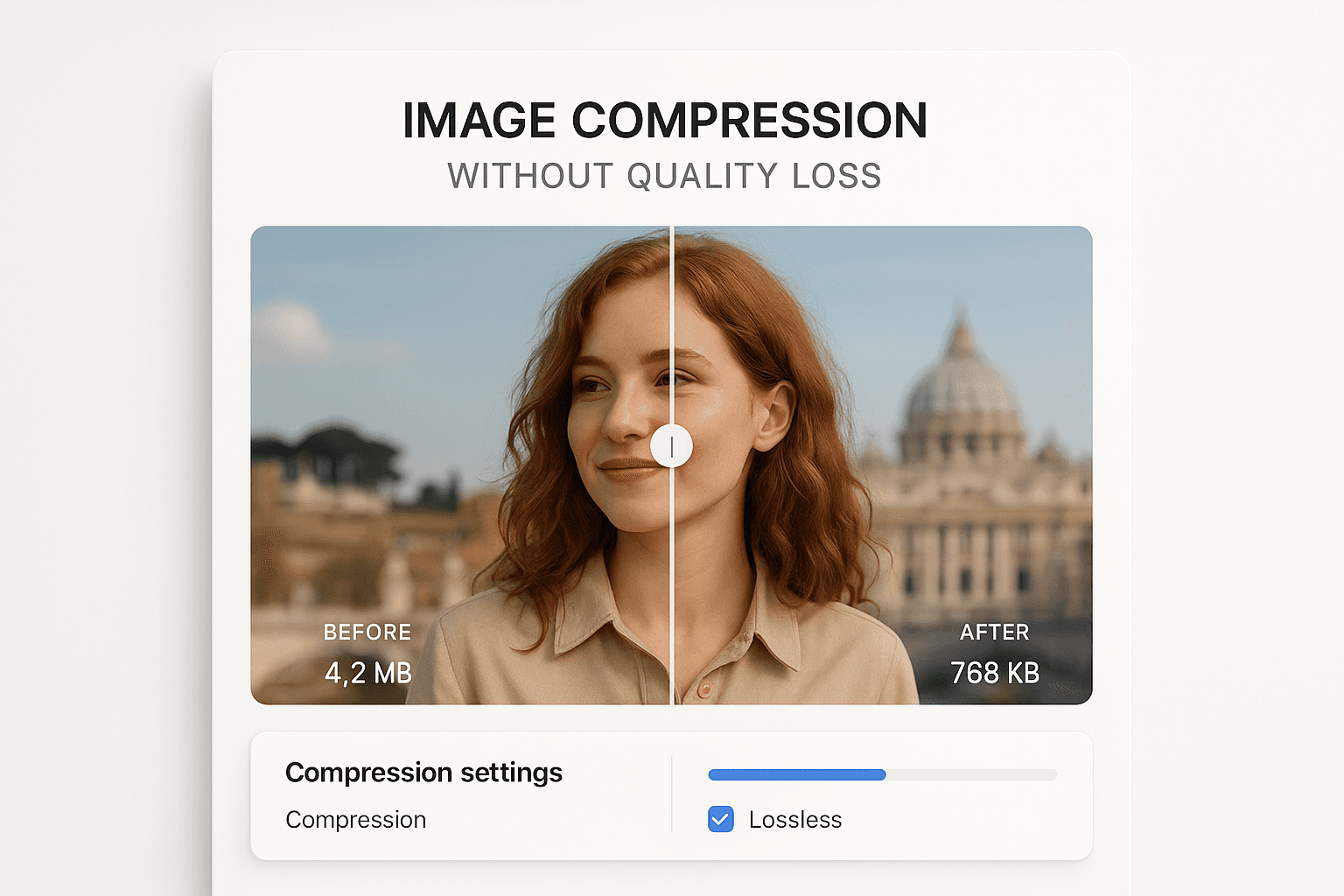
Large image files are the silent killer of website performance. A single unoptimized image can add seconds to your page load time, driving away visitors and hurting your search rankings. But here's the good news: you can dramatically reduce file sizes while maintaining visual quality that's indistinguishable to the human eye.
Understanding Image Compression
Image compression comes in two flavors: lossy and lossless.
Lossy Compression
Lossy compression discards some image data to achieve smaller file sizes. The key is finding the sweet spot where file size is minimized but quality remains acceptable.
- JPEG: Adjustable quality from 0-100
- WebP: Similar quality slider
- Typical sweet spot: 75-85 quality
Lossless Compression
Lossless compression reduces file size without any quality loss by removing metadata and optimizing how data is stored.
- PNG: Can be optimized 10-30% without quality loss
- WebP lossless: Even better compression than PNG
The 80/20 Rule of Image Optimization
You can achieve 80% of the file size reduction with just 20% of the effort by following these simple steps:
1. Resize Before Compressing
Never serve a 4000px image when you only need 800px. Resizing is the single most effective way to reduce file size.
- Hero images: 1920px wide maximum
- Content images: 800-1200px wide
- Thumbnails: 300-400px wide
2. Choose the Right Quality Setting
For JPEG and WebP, quality 75-85 is the sweet spot:
- Quality 100: Massive files, imperceptible quality gain
- Quality 85: Excellent quality, reasonable file size
- Quality 75: Good quality, great file size
- Quality 60: Noticeable artifacts, not recommended
3. Use Modern Formats
Switching from JPEG to WebP can reduce file size by 25-35% with the same visual quality.
4. Remove Metadata
Images from cameras and phones contain EXIF data (location, camera settings, etc.) that adds unnecessary bytes. Stripping this metadata can reduce file size by 5-15%.
Advanced Techniques
Progressive JPEGs
Progressive JPEGs load in multiple passes, showing a low-quality version first that gradually improves. This makes pages feel faster even if the actual load time is the same.
Adaptive Quality
Not all parts of an image need the same quality. Some tools can apply higher compression to less important areas (like backgrounds) while preserving detail in focal points.
Tools for the Job
- Online tools: TinyPNG, Squoosh, ImageOptim
- Command line: ImageMagick, cwebp
- Build tools: Sharp (Node.js), Pillow (Python)
The Bottom Line
With the right approach, you can reduce image file sizes by 60-80% while maintaining quality that looks identical to the original. This translates to faster page loads, happier users, and better search rankings.